Why So Much Work Gets Lost After Meetings
Most teams already have plenty of tools.
The problem isn’t lack of software — it’s that important details end up scattered across:
- Meetings
- Slack threads
- Loom videos
- Random links and docs
Decisions get made, but a few days later no one remembers who was supposed to do what.
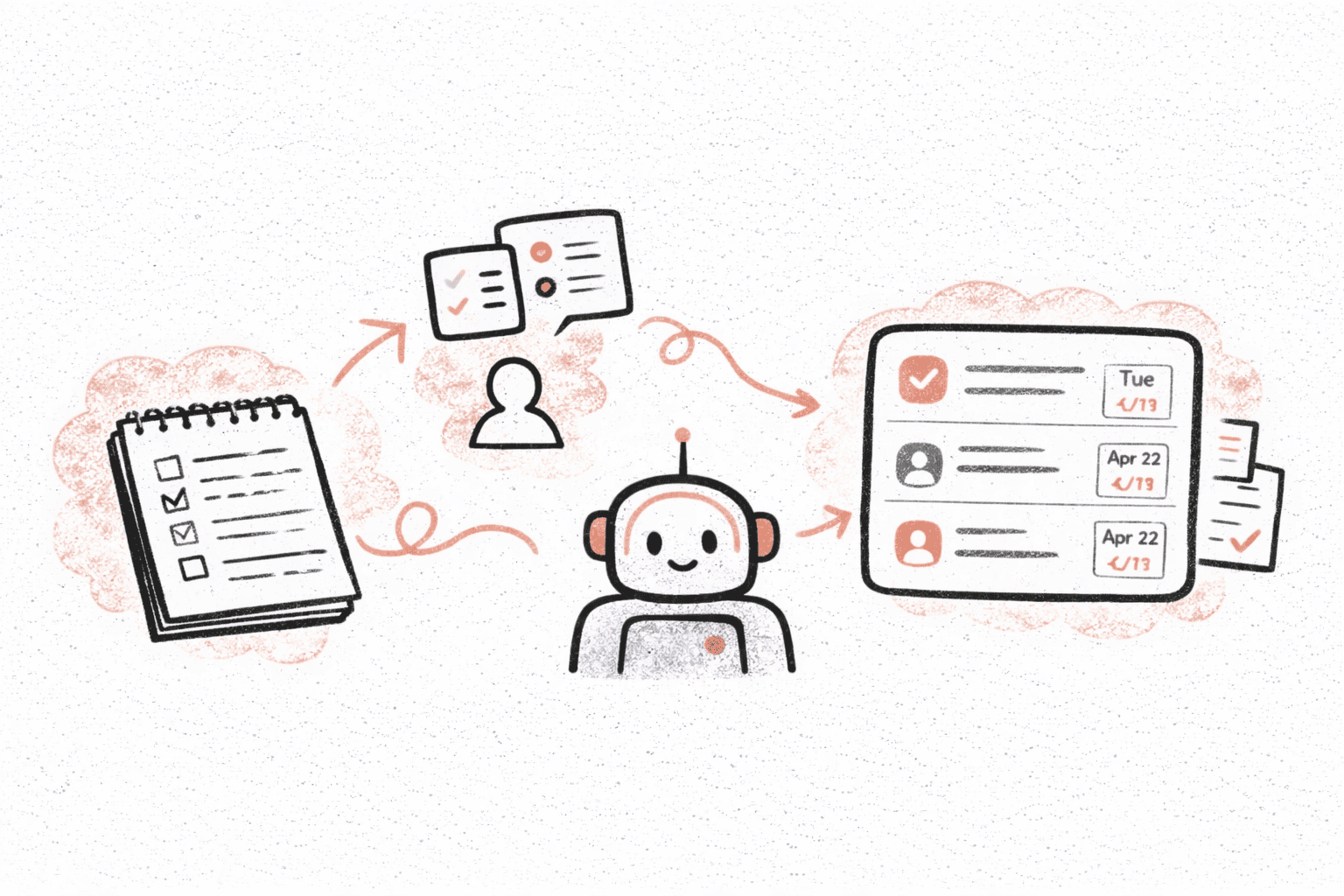
Recal is built to quietly sit in the middle of all this and turn conversations into something you can actually act on: clear summaries and real tasks.
Here’s how teams usually fit Recal into their daily routine.
Step 1: Use Recal on Things You Already Do
You don’t need to change how you run meetings or communicate.
Recal works with what you already use:
- Zoom or Google Meet recordings
- Loom or YouTube links
- Uploaded audio or video files
- Slack conversations
Most people simply drop a link into Recal after a meeting or call.
A few minutes later, they get:
- a short summary
- the main points
- suggested action items
No note-taking during the call. No re-watching recordings later.
Step 2: Let Recal Pull Out the Action Items
Summaries are helpful, but they don’t move work forward by themselves.
That’s why Recal focuses heavily on tasks.
From each recap, you’ll usually see:
- what needs to be done
- who it’s related to
- when it should probably happen
You can adjust, assign, or group tasks however you like.
Instead of relying on memory or scrolling through chat history, your next steps are already written down.
Step 3: Keep Related Work Together With Projects
If you’re working with multiple clients, teams, or product areas, things get messy fast.
Projects in Recal help keep everything in one place:
- meetings
- recaps
- tasks
Many teams keep it simple:
- one project per client
- or one project per product area
Every meeting related to that work goes into the same project. Over time, it becomes a running history of what was discussed and decided.
It’s surprisingly useful when you need to remember why something was agreed on.
Step 4: Automate Follow-Ups With Integrations
This is where Recal starts saving real time.
Slack: Recaps Where Your Team Already Talks
With the Recal Slack bot, recaps can be sent directly to:
- channels
- threads
- or specific people
Instead of someone writing a long “meeting summary” message, the recap just shows up.
People who missed the meeting can still see:
- what was discussed
- what decisions were made
- what needs to happen next
No extra messages to write.
Automatic Slack Channel Recaps
Some teams also want regular summaries of what’s happening in busy Slack channels — not just after meetings.
With periodic Slack recaps, you can:
- choose one or more channels
- pick how often you want summaries (daily, weekly, monthly, or quarterly)
- get structured recaps posted automatically
These usually include:
- key topics discussed
- important decisions
- surfaced action items
This works especially well for:
- team-wide updates
- leadership overviews
- staying aligned without adding more meetings
Instead of scrolling through hundreds of messages, you get a clear snapshot of what actually mattered.
Linear: Turn Decisions Into Real Work
For product and engineering teams, meetings usually end with tasks that need to go into an issue tracker.
With Linear integration, you can push action items directly into your backlog and keep them linked to the original recap.
That way:
- tickets reflect real conversations
- context isn’t lost
- and no one has to rewrite tasks after every call
It removes one of the most annoying parts of post-meeting work.
Step 5: Share Recaps Instead of Writing Follow-Up Messages
After meetings, people often:
- forget to send notes
- send very short summaries
- or send long messages no one reads
Sharing a recap link is faster and clearer.
It works well when:
- someone couldn’t join the call
- you need to update a client
- you want to keep things transparent
People can skim highlights and jump straight to tasks without digging through recordings.
Step 6: Do a Simple Weekly Check-In
A lot of teams use Recal as part of a short weekly routine.
Once a week, they:
- look at open tasks
- check what’s done
- follow up on anything stuck
Because tasks come directly from real meetings and Slack discussions, this review feels much more connected to actual work than a generic to-do list.
At this point, Recal stops being “just a meeting tool” and starts acting like a lightweight workflow hub.
What a Normal Day With Recal Looks Like
Here’s a realistic example.
Morning
- Check tasks created from yesterday’s meetings
- Review automatic Slack channel recaps
- Scan highlights from team discussions
During the Day
- Join meetings as usual
- Drop recording or Loom links into Recal
- Let scheduled Slack recaps run automatically in the background
After Meetings
- Skim the recap
- Adjust tasks if needed
- Push important items to Linear or share recap links
End of Week
- Review tasks by project
- Follow up where things slowed down
- Use recaps as documentation of what was decided
No extra meetings. No new complicated process.
Just fewer things slipping through the cracks.
Who This Workflow Works Best For
Recal tends to be especially useful for:
- founders juggling many conversations
- product and engineering teams
- sales and customer success teams
- agencies working with several clients
Anywhere decisions are made in calls or chats, Recal helps keep them from getting lost.
Getting Started
If you want to try this approach:
- Send one meeting or Loom video to Recal
- Review the recap and tasks
- Connect Slack or Linear if you want more automation
- Start sharing recaps instead of writing notes
Most teams feel the difference after just a few meetings.
👉 Try your first recap at https://app.tryrecal.com