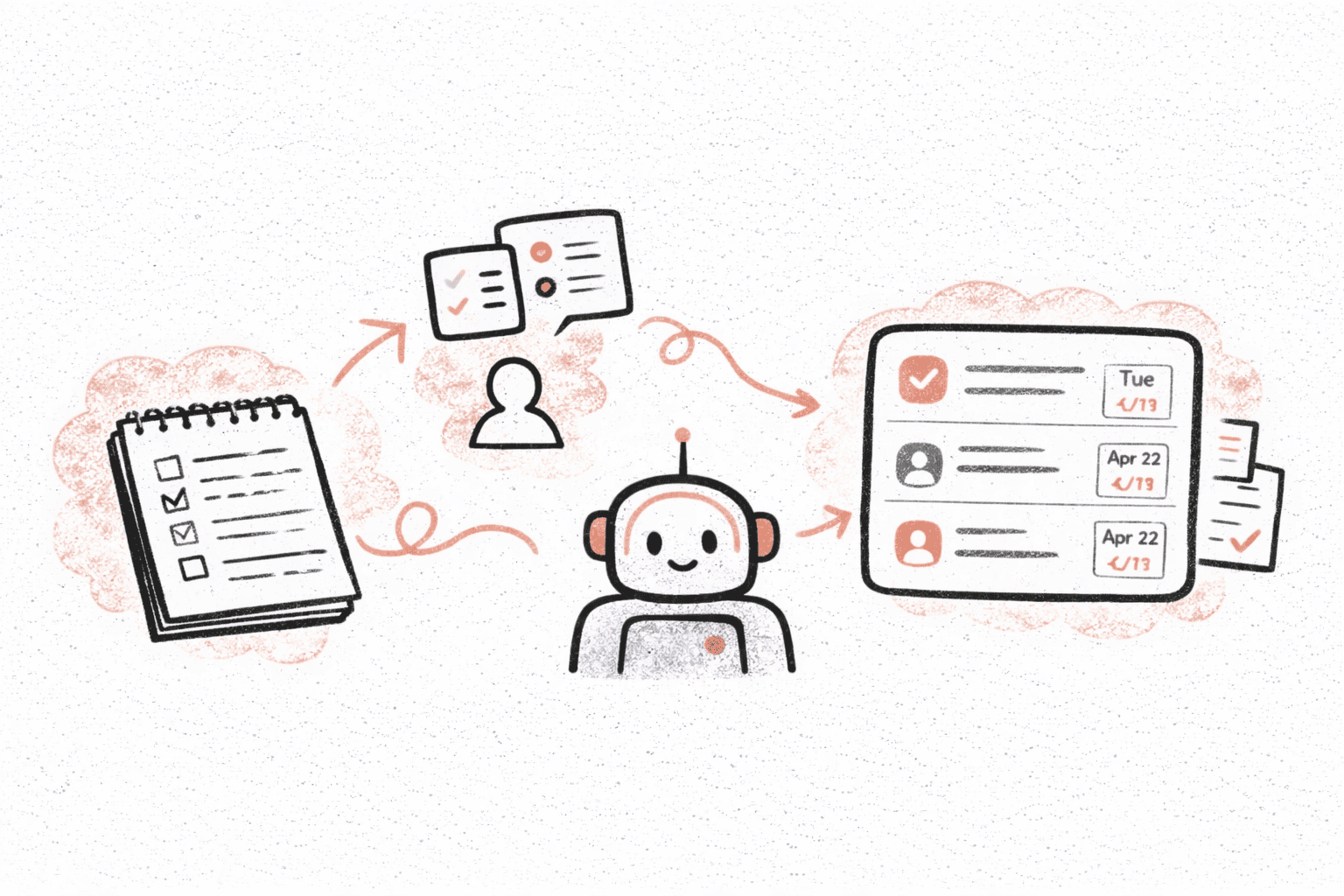
Why Teams Add Meetings When Slack Gets Busy
Most teams start new meetings for a simple reason:
We’re missing important updates in Slack.
Channels get noisy. Threads get long. Important decisions get buried.
So teams schedule:
- weekly syncs
- standups
- update meetings
Not because they love meetings — but because they don’t have a good way to summarize what’s happening in chat.
Automatic Slack channel recaps exist to solve exactly this problem.
What Are Automatic Slack Channel Recaps?
Instead of someone manually summarizing conversations, Recal can automatically generate recaps from selected Slack channels.
You choose:
- which channels to monitor
- how often you want summaries (daily, weekly, monthly, or quarterly)
And Recal posts structured recaps that highlight:
- key topics
- important decisions
- surfaced action items
So instead of scrolling through hundreds of messages, you get a clear snapshot of what actually mattered.
When Automatic Recaps Are Especially Useful
Teams use Slack recaps in a few common situations.
Busy Team Channels
General or team-wide channels often have:
- questions
- updates
- side discussions
Daily or weekly recaps help everyone stay informed without reading everything.
Project or Product Channels
For product teams, recaps help track:
- decisions
- blockers
- next steps
without needing extra sync meetings just to “get aligned.”
Leadership and Stakeholder Updates
Leaders don’t need every message — they need the signal.
Monthly or quarterly recaps provide:
- high-level progress
- major decisions
- recurring issues
without asking teams to prepare separate reports.
How Teams Set This Up in Practice
Most teams keep setup simple.
- Add the Recal Slack bot to the workspace
- Select the channels you want to summarize
- Choose how often recaps should be posted
- Decide where recaps should appear (same channel, different channel, or DM)
After that, recaps just run in the background.
There’s no extra work for anyone in the channel.
How This Reduces the Need for Meetings
A lot of meetings exist for one purpose:
sharing updates
When automatic recaps are available:
- people already know what’s going on
- discussions start from shared context
- meetings can focus on decisions instead of status updates
Some teams use this to:
- shorten weekly syncs
- replace update-only meetings entirely
- keep async teams aligned across time zones
Alignment improves, but calendars stay lighter.
Combining Slack Recaps With Action Items
Slack summaries are helpful on their own, but they become much more powerful when paired with tasks.
With Recal, recaps can also surface:
- follow-ups
- responsibilities
- next steps
And those tasks can be:
- reviewed in Recal
- sent to Slack
- pushed to tools like Linear
So conversations don’t just get summarized — they turn into work that actually moves forward.
A Realistic Weekly Flow
Here’s what this looks like for many teams.
During the Week
- Conversations happen in Slack as usual
- Recal automatically generates channel recaps
End of Week
- Team reviews recap instead of scrolling chat
- Important items become tasks
- Only unresolved topics go into meetings
Result
- fewer meetings
- shorter meetings
- better shared understanding
No one has to write reports or summaries manually.
Who Benefits Most From Slack Channel Recaps
This feature is especially useful for:
- remote and distributed teams
- founders managing multiple channels
- product and engineering teams
- teams scaling fast and adding new people
Anywhere Slack is the main communication hub, automatic recaps reduce noise while keeping everyone informed.
Getting Started
To try automatic Slack channel recaps:
- Add the Recal Slack bot
- Choose the channels you want summarized
- Set daily, weekly, monthly, or quarterly schedules
- Let recaps run automatically
Most teams notice the difference within the first week.
👉 Try automatic Slack recaps at https://app.tryrecal.com